The Dashboard
The Dashboard is your command center. It is the first screen you see after authenticating and acts as the file manager for all your Rekhic workspaces.
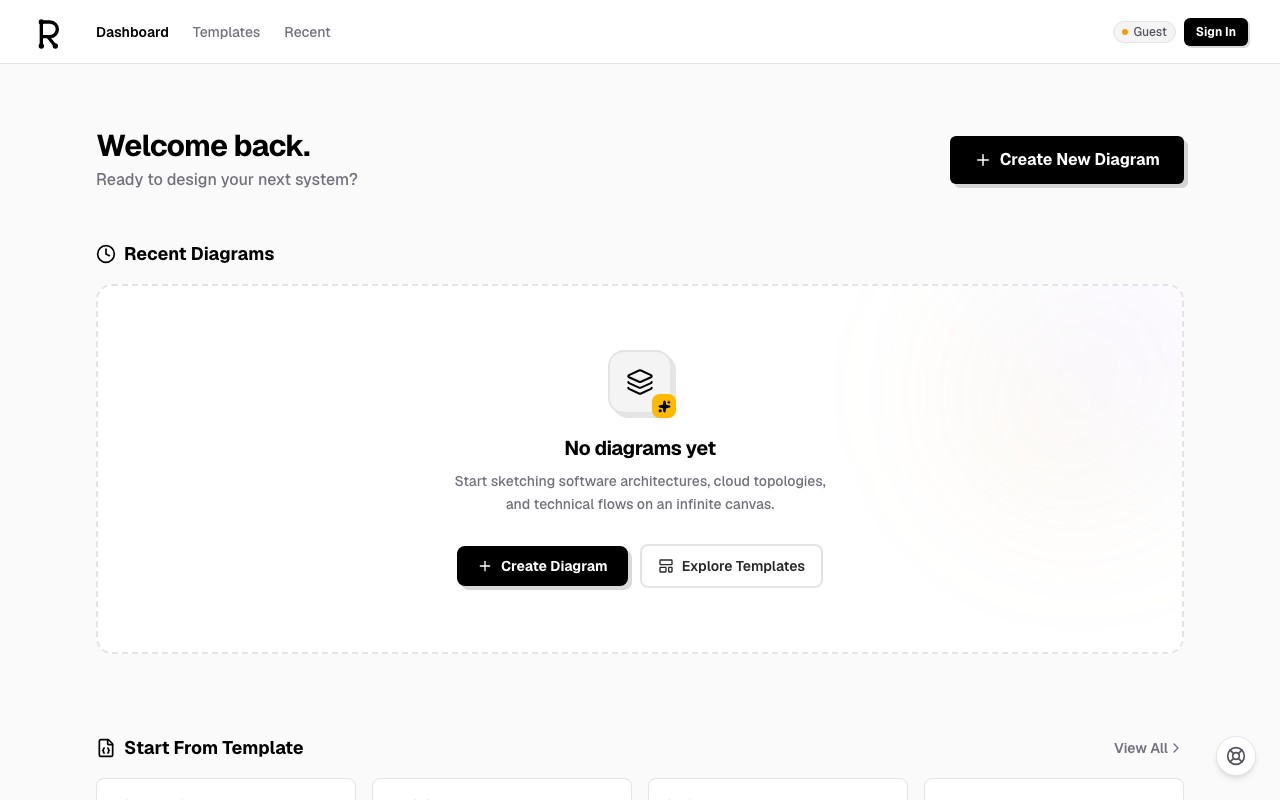
Recent Drawings
The main view of the dashboard displays your Recent Drawings. Each drawing is represented by a RecentDrawingCard that shows the title of the diagram and the last time it was modified.
Because Rekhic uses Firebase for real-time cloud saving, you never have to explicitly "Save" your document to see it appear here. If you draw a node and close the tab, it will immediately be waiting for you in the Recent Drawings list.
Creating and Switching Diagrams
Creating a New Diagram
Click the New Diagram button in the dashboard header to instantiate a completely blank canvas.
Switching Between Diagrams
If you are already inside a workspace (Canvas), you do not need to navigate all the way back to the Dashboard to open a different file. You can use the Diagram Switcher Modal located in the top-left corner of the workspace header to instantly jump between your recent diagrams.