Shapes & Text
While architecture nodes handle the heavy lifting, standard shapes and text are essential for grouping, annotating, and structuring your diagrams.
Shape Nodes
You can add standard shapes from the left Toolbar.
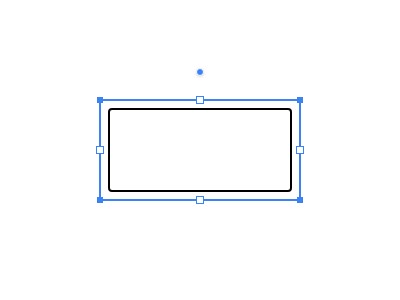
- Rectangles: Often used to represent generic components, bounded contexts, or network boundaries (like a VPC).
- Ellipses: Useful for representing users, start/end states, or generic nodes.
Node Context Controls
When you select a shape node, the NodeContextToolbar appears. Here you can:
- Change the background color.
- Adjust the stroke (border) width and color.
- Duplicate or delete the node.
Text & Sticky Notes
Text Nodes
Text nodes are transparent, borderless text blocks used for labeling connectors, providing titles to diagram sections, or writing loose notes.
Sticky Notes
Sticky nodes visually resemble physical sticky notes and are perfect for leaving temporary reminders, "TODOs", or highlighting crucial architectural decisions right on the canvas.
Selecting and Moving Nodes
- Moving: Click and drag any node to move it around the canvas.
- Editing Content: Double-click any shape, text, or sticky note to edit the text inside it.
Related: Learn about Architecture Nodes and Selection & Grouping.