Architecture Nodes
Architecture Nodes are the core feature that separates Rekhic from generic drawing tools. They are specialized nodes designed specifically to represent technology components like servers, databases, cloud services, and third-party APIs.
The IconLibrary
When you place an Architecture Node, you gain access to the IconLibrary. This is a built-in, searchable database of standard technology logos and architecture symbols.
Supported Technologies
The IconLibrary currently supports major cloud providers and technologies, including:
- AWS (EC2, S3, RDS, Lambda, etc.)
- GCP (Compute, Cloud Storage, Spanner, etc.)
- Azure (Virtual Machines, Blob Storage, CosmosDB, etc.)
- Generic Tech (PostgreSQL, Redis, Node.js, React, Docker, Kubernetes)
Note: Do not expect obscure or proprietary third-party logos. If an icon is missing, use a generic Shape or Text node.
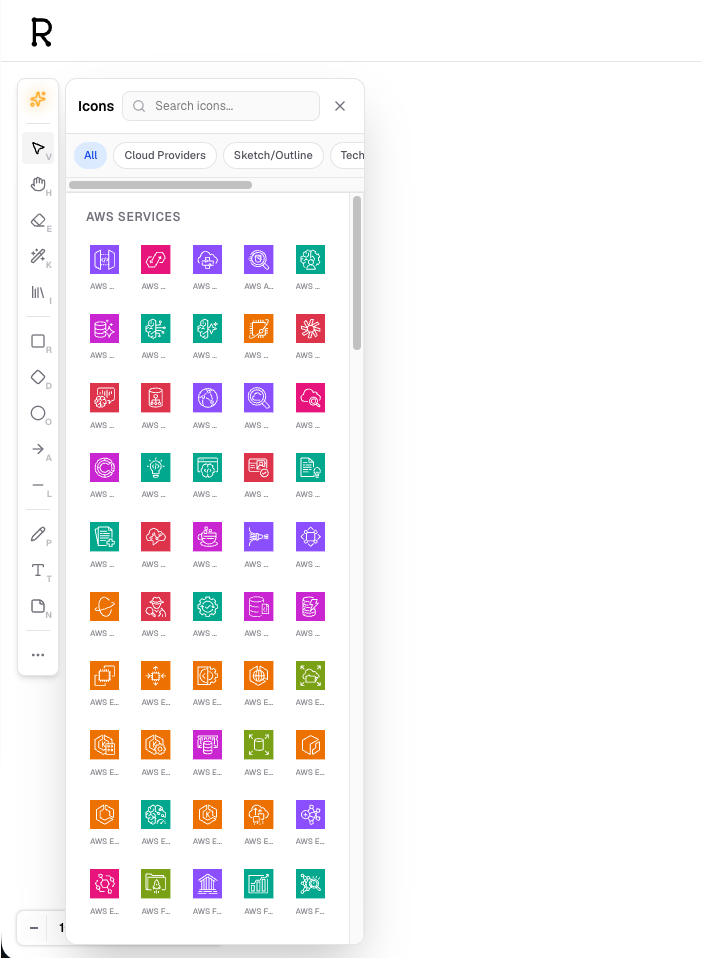
Placing Architecture Nodes
- Select the Architecture Node tool from the left toolbar.
- Click on the canvas to place the node.
- The IconLibrary search will automatically open (or click the icon button in the
NodeContextToolbar). - Search for your desired technology (e.g., "Redis") and select it.
- The node will automatically update with the correct logo and default label.
Connecting Architecture Nodes
Architecture nodes behave like any other node. You can drag from their connection handles to link them to other nodes, creating a system topology map.
For example, to represent an API talking to a cache:
- Place a "Node.js" Architecture Node.
- Place a "Redis" Architecture Node.
- Draw a connector from Node.js to Redis.
Next: Learn how to connect these nodes properly in Connectors & Routing.