
How to Draw an AWS Cloud Architecture Diagram
Mapping out AWS infrastructure is notoriously tedious. With over 200 services, generic whiteboarding tools force you to spend 20 minutes Googling "AWS EC2 icon PNG transparent" before you can even draw your first line.
In this tutorial, we will use Rekhic to draw a classic highly-available AWS web architecture in just a few minutes.
Standardizing AWS Icons
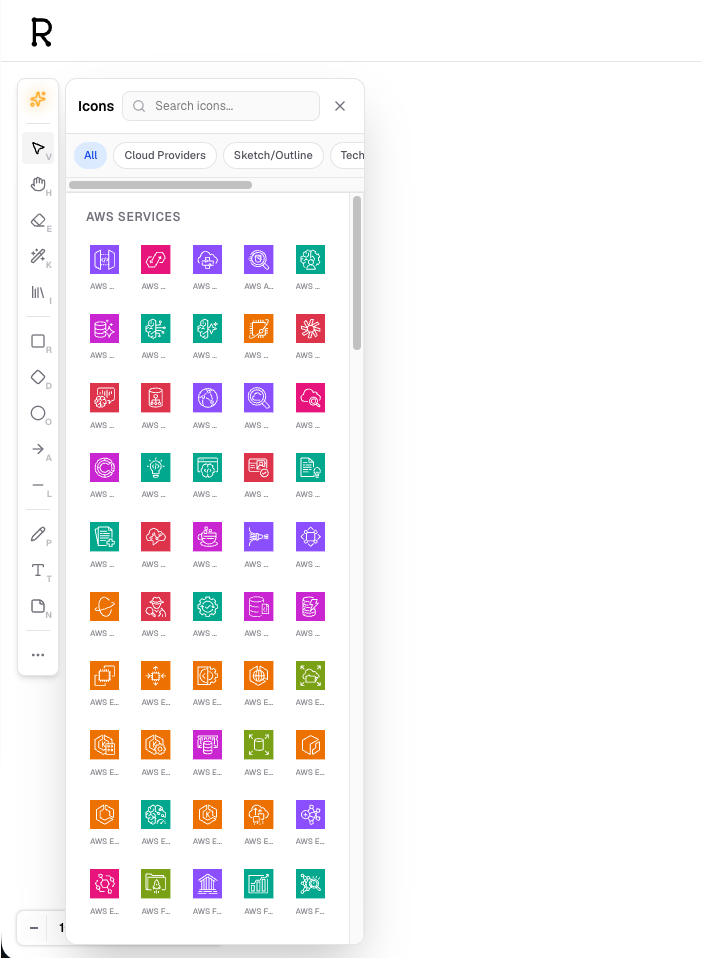
Rekhic comes with a built-in IconLibrary. Instead of hunting for images, you simply place an Architecture Node and search for the service you need.
Structuring VPCs and Subnets
A standard AWS diagram starts with the network boundaries.
- Draw a large Rectangle shape to represent your AWS Region.
- Inside it, draw another Rectangle to represent your Virtual Private Cloud (VPC).
- Use GroupNodes (select the shapes and press
Cmd/Ctrl + G) to lock them together.
Connecting Services
Now let's add the infrastructure:
- Drop an Architecture Node and search for Application Load Balancer (ALB).
- Drop two more nodes for EC2 instances (representing an Auto Scaling Group in multiple Availability Zones).
- Drop a final node for RDS (Relational Database Service).
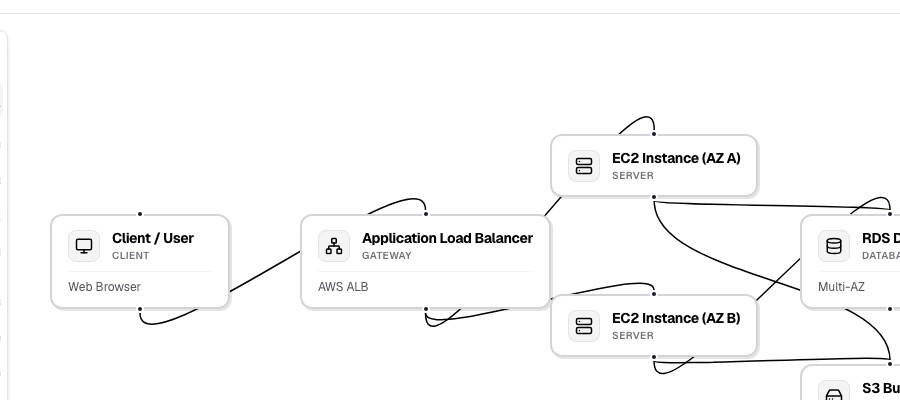
To connect them, hover over the ALB node to reveal its connection handles, and drag a connector to the EC2 instances. Rekhic's smart routing will ensure the lines snap cleanly at right angles.
Exporting for your Docs
Once your diagram is finished, click Export -> PNG. Read more in our exporting guide. You can now drag that image directly into your GitHub PR, Notion wiki, or Confluence page.
Create this diagram in Rekhic right now.